+385 95 8025 749
Blog

How do I set up a Google Street View virtual tour on a website?
In addition to displaying your virtual tour on the Google Network and Facebook, you can also put it on your website. We always recommend customers to do so because they improve customer interaction with their brand, help the user get easier and before they physically come and strengthen their visitors' confidence as they see it as a serious and transparent company.
The whole process is very simple and in just a few steps you will set up a virtual walk on your web.
Step 1
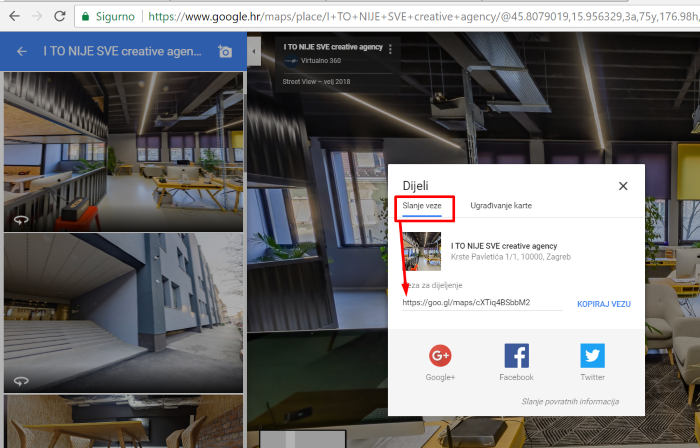
Find your virtual walk in Google Maps and click on it to enlarge the image across the entire screen and look like in the picture below. Navigate through your virtual walk until you find the best angle you want your virtual walk to begin.
step 2
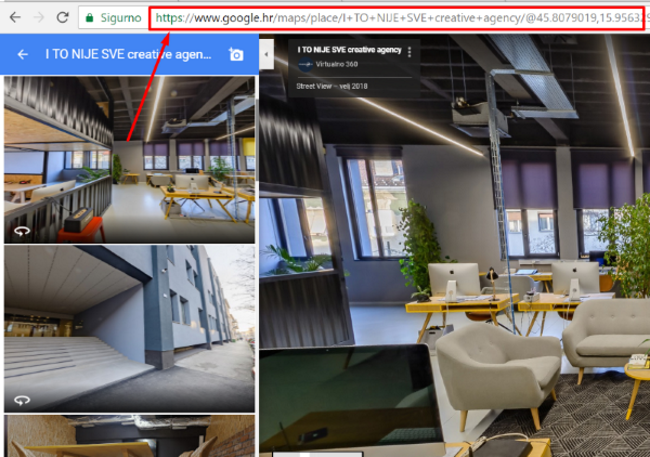
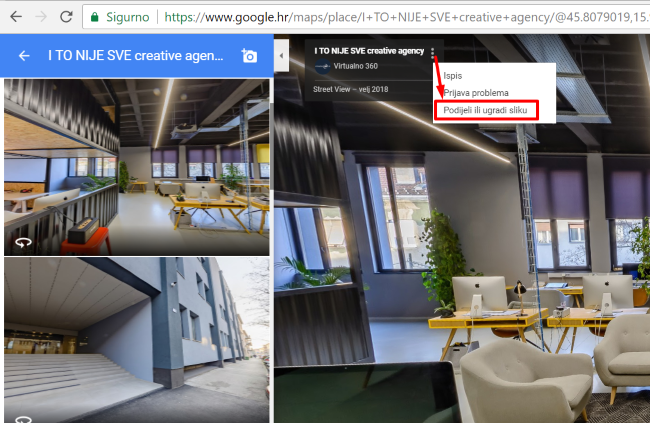
Click the three-point icon located in the upper left corner, and select "Share or embed image" or "Share or embed image" from the open window.
step 3
A)
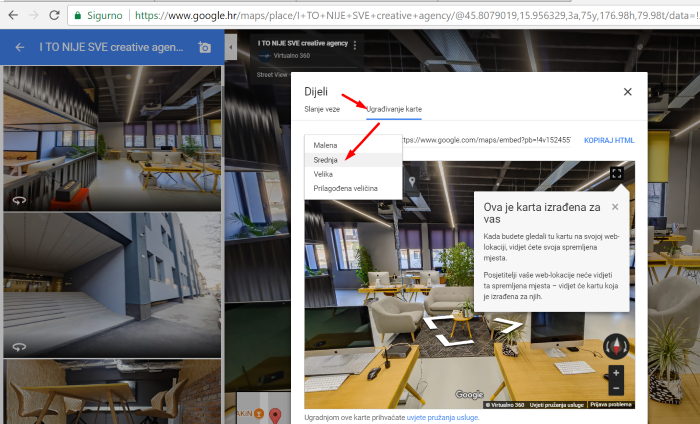
You can choose between the small, middle, and large virtual walks box with the button located to the left of the code. Then, check the source code and copy it. If you need the box to be of a certain size, select "Custom size" or "Custom size" and follow the procedure under 3B.
B)
If you need the size of your virtual wrap frame to be of a certain size to fit a specific space on the page, there is no problem. After selecting "Custom size", you can choose dimensions as desired. Enter the dimensions, then tick the code and copy it.

step 4
Paste the code inside the html page of the web to the place where you would like your virtual tour to be displayed. Once your code is glued, we recommend that you change the width setting to 100%. With this setting, we allow the virtual walk size to automatically adjust to the monitored device. Generally speaking, setting the width to 100% and setting the height in the interval between 450px and 550px, allow virtual walks to look better on most web sites. After everything is done, save your changes and your virtual walk will be placed on your web site. Visit your site and review your virtual walk. If that's all right, you've done a great job.